3. Getting started
Upon starting the app on your device, both the L’ART Research Assistant app and a terminal window will open.
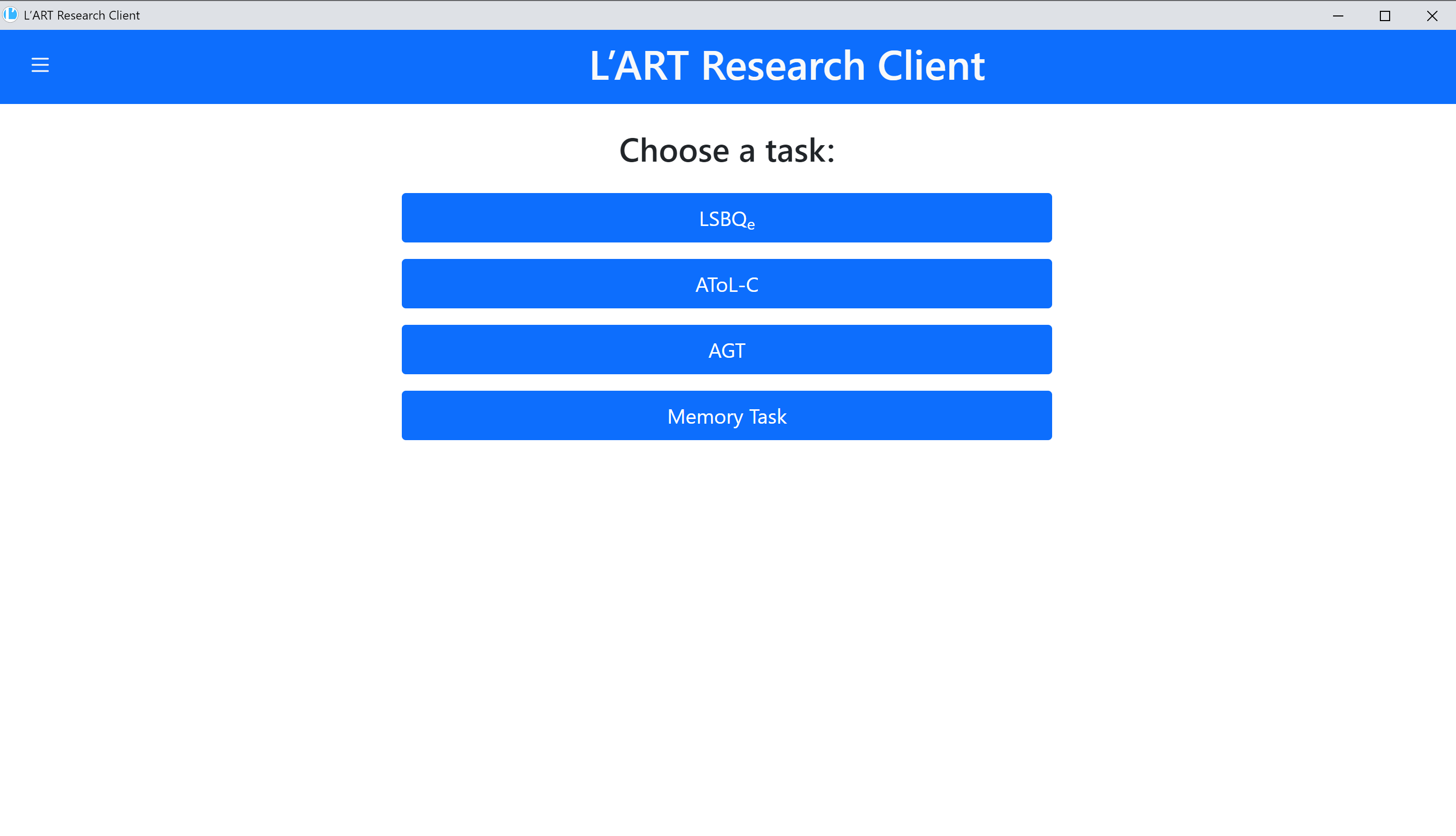
Fig. 3.1 L’ART Research Assistant home screen
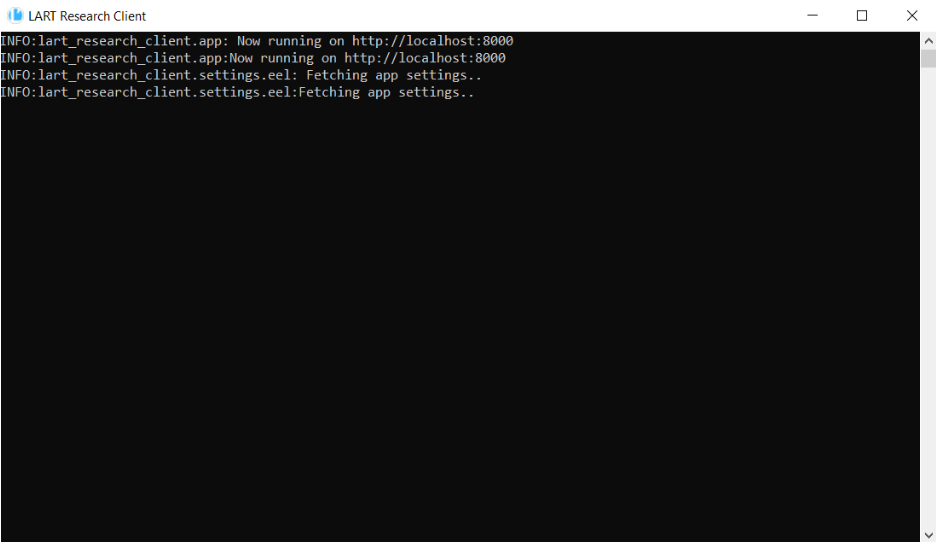
Fig. 3.2 L’ART Research Assistant Terminal
The terminal window prints out information that might be helpful with troubleshooting and should not be closed (the app will freeze/become unresponsive if the terminal window is closed).
When you close the app, the terminal will also close automatically.
However, if you close the terminal, the main app window will not close automatically.
On the app home screen, you will see the list of available tasks in the centre of your app, and a side menu containing several options, some of which are context-dependent. For example, the side menu contains options for Setting up data collection and obtaining consent, Locking and unlocking the app, Exporting data, Discarding an attempt in progress, App Settings and a dialogue providing information about the app.
These options are described in the linked sub-sections of the documentation.